Showing posts with label Google Docs. Show all posts

Thursday, January 24, 2013

Google Slides now available offline!


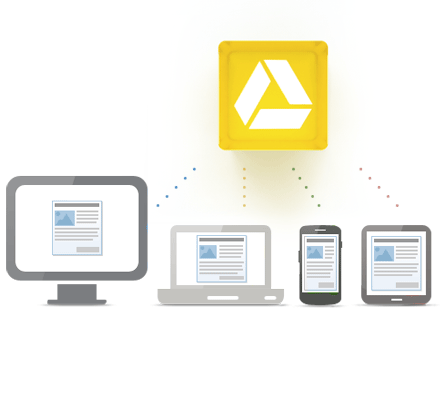
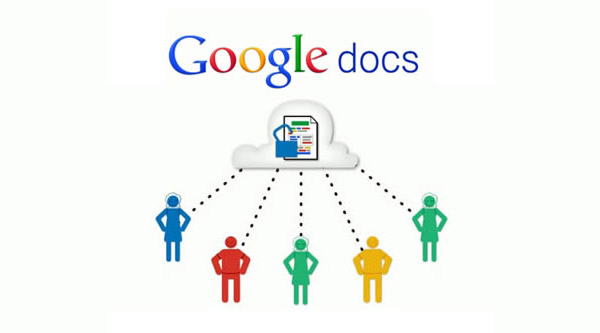
Google Docs/Drive is a great, free resource that allows you to create, edit, share, collaborate on, and comment on Documents (Docs), Spreadsheets (Sheets), and Presentations (Slides), all online. Think Microsoft Office in the cloud with some other great features.

I use Google Slides (Presentations), the equivalent of PowerPoint, for all of my presentations. I like the features it has and like that I can easily share it online and people will always be able to see the newest version. One downside was that you needed an internet connection and some conferences I have presented at can have WiFi issues due to all of the devices being used. I would always save a copy of my presentation as a PDF file to my laptop in case I didn't have a good internet connection. That is no longer necessary.


Google has announced that Google Slides will now be available with offline support. You can now create, edit, comment, and present your Slides presentation without an internet connection. When you get an internet connection, your new presentations or changes will be automatically updated online. Docs has had this for a while already.

This is a great feature that makes Slides even more useful, along with Chromebooks, for people who need to work on, or present, their presentations where they may not have WiFi. It's also great for schools who issue Chromebooks to students that may not have internet at home. Our district is going with Chromebooks and student internet access at home is a concern. That is less of a concern now.

To enable offline Docs/Sheets/Slides, follow these instructions. If you already have offline enabled for Docs, you are all set. In order to use the offline feature, you will have to use Chrome browser or Chrome OS.

Google is currently working on offline support for Sheets as well.

Offline support has been the one reason I see many people stating as why they won't or can't go with Google Drive/Docs and Chromebooks. That reason is disappearing.


Related:

Google for Educators Resources


Thursday, October 25, 2012

Google now has one click access to Docs, Sheets, and Slides


Google just announced this week a nice addition to Google Drive - the ability to immediately start a new document. Instead of having to go into Drive and then click on New___, you can install Docs (documents), Sheets (spreadsheets) and Slides (presentations) as apps from the Chrome Web Store and use them to immediately start a new file. The shortcuts appear as apps on the new tab page in Chrome. Docs, Sheets, and Slides will appear in your apps list on a Chromebook by default. They will be automatically added to Chromebooks in the next Chrome OS update.

This will make it even easier and faster to create new docs files using Chrome Browser or Chrome OS.


Related:

Google for Education Resources (lots of great resources for students and educators)


Friday, September 28, 2012

Google Docs can import old Office Formats, but exports them as new format

Google Docs Logo
Google Docs will no longer export files into the old Microsoft Office Formats (.doc, .xls, .ppt). Instead, it will download the files as .docx, .xlsx, and .pptx. You can also still download files in .odt, .rtf, .pdf. .txt formats. This will also affect Google Apps accounts. (And Google Drive since that's where everyone's Docs are going.


You can still import these older Office file formats, but if you then export them, they will export in the new formats. This may cause a little bit of an issue with some users, including schools still stuck in Windows XP and Office 2003 or earlier.


There is a workaround though - install the free compatibility plugin from Microsoft so you can open the modern Office file types. I've already done this because I have Windows 7 at home and receive a lot of files from people using the newer version of Office. Without this plugin, I wouldn't be able to even open any of these files. This is something everyone should have done by now, especially with more and more people using the newer versions of Office.

Access everywhere

Other options are to use Google Docs instead of Office, convert Office files to Docs files when uploading (which is what I usually do), or keep the Office files in a service like Dropbox or Sugarsync (which is what I do for files that I don't want to risk having formatting losses when being converted).

All of the options are free and only take a few minutes to implement.

I see a lot of people complaining at the beginning, but it really isn't as big a deal as many news outlets are making it out to be.


Friday, September 7, 2012

Google Spreadsheets adds Discussions for easier collaboration


Wednesday, May 16, 2012

Google Updates Chrome and adds Research in Docs


Google had  a busy beginning of the week, releasing three updates that are very useful.


1. Google Chrome Browser - version 19 released: Chrome 19 patches 20 vulnerabilities in the browser and supports tab synchronization. It already had support to sync your bookmarks, passwords, apps, and more across your account onto all copies of Chrome (including on Android) and now it also adds the ability to sync your open tabs across your account. This is handy when switching from one device to the other.


2. Google Docs gets built in search - do research as you work: In Google Docs, there is now a research pane where you can do a Google search directly from Google Docs. No need to open a new tab or leave your document. It is under the Tools menu. You can right click on a word in Docs that you want to learn more about also, or use the pane to search for anything you need. It will even automatically add a footnote citation for you!

This is a great resource for anyone doing research or writing a paper.


Related:

Google for Educators Resources



Thursday, May 3, 2012

Google Docs updates - 450 new fonts, 60 new templates, image insert options, and more


Google is constantly updating and refreshing their products. The recently launched Google Drive, which is an online file sync and storage service that is integrated with other Google products like Docs, and they just announced a bunch of new features and upgrades.

Google Docs, the online office suite of apps, now has over 450 new fonts in it. You do have to add them to your Docs though. Go to font menu, click "Add fonts" at bottom, go to the menu of web fonts available, select the new fonts you want, and they will be in your Docs font menu.


Google has also added more options for inserting images in Docs. You can insert them from Google Drive, search for images in the LIFE photo archive, or even use a picture taking with your webcam. 
There are new gridline and axis format options in Charts in Spreadsheets, more accessibility in Docs, the ability to set the default page size for new documents, over 60 new templates in the template gallery and an increase in the size of docs files from 2MB to 50MB. 
You can also convert CSV files directly in Google Docs to be able to read them. If you try to open a CSV file in Docs, you get a "No Preview Available" page. Click File>Export to Google Spreadsheet and you will be able to view it in Docs. 

Read more about all the new features and options on the Official Google Docs Blog. (source)

Related:

Google Drive - file sync, storage, share - integrated with Docs and Google+

Google Resources for Education
Presentation on Google for Educators

Why I use Google's Products as an Educator (and how)

Google+ - more reasons it's great for educators

Google Plus - tips for using in education, facts and data infographic


Monday, April 23, 2012

Free Google Docs CheatSheet - great resource for Google Docs users


MakeUseOf, a very useful site, has a great booklet available as a free download: The Google Docs CheatSheet.


Google Docs is one of my favorite, and most used web apps. It includes a word processor, spreadsheet, presentation, drawing, and forms apps that are free, and online and have some great features, including real-time collaboration with multiple users. 

This cheat includes handy keyboard shortcuts, web browser addons aimed at Google Docs users and a number of useful third-party sites that add additional features to Google Docs

If you use Google Docs, this is a very handy resource. Go here to download it: http://www.makeuseof.com/pages/google-docs-cheat-sheet


Related:

Google Resources for Education - tips, how-to's, getting started, lesson ideas, and much more

52 Google Docs Secrets for Students

Excellent Google Docs Resource


Tuesday, April 10, 2012

Excellent Google Docs Resource


Google Docs is one of my favorite resources for myself, other teachers, and students. I use it constantly and when I share it with other teachers, friends, or my students, they are usually impressed and start using it too.

There are tons of features and functions in Google Docs that make using it extremely useful and effective as an educational tool. The fact that it's free, online, and collaborative make it great for students. Word Processing, Presentations, Forms, Drawings, and Spreadsheets. Google keeps adding more features too.


Richard Byrne has created an excellent Google Docs resource over at his blog, Free Technology for Teachers. It is a free ebook, in PDF form, that covers everything a teacher needs to know about Google Docs, from signing up, to creating, sharing, and publishing docs, to creating and using forms and even creating self-grading quizzes.

This is a resource that should be shared with all teachers who use, or want to get started using, Google Docs.


Related:

Google for Educators Resources - tips, using in education, resources, training, apps, and much more.

my other favorite resource: Evernote for Education - resources, tips, ideas and more

Presentation on Google for Educators

Why I use Google's Products as an Educator (and how)

Google Resources - Resources to highlight various ways to use Google Apps for instruction and student use
http://its.leesummit.k12.mo.us/google.htm

Google Apps for Education Training Center - http://edutraining.googleapps.com/Training-Home - great resources to learn how to use Google Apps in the classroom.

Google for Educators- Resources for using Google in School: http://goo.gl/4rEZd


Thursday, April 5, 2012

52 Google Docs Secrets for Students


Google Docs is one of my favorite resources for myself, other teachers, and students. I use it constantly and when I share it with other teachers, friends, or my students, they are usually impressed and start using it too.

There are tons of features and functions in Google Docs that make using it extremely useful and effective as an educational tool. The fact that it's free, online, and collaborative make it great for students. Word Processing, Presentations, Forms, Drawings, and Spreadsheets. Google keeps adding more features too.


The folks over at OnlineColleges have come up with a list of 52 Great Google Docs Secrets for Students. Each tip has a link to another website, sometime's Google's, that explain that tip in more detail. Tips include adding videos, formatting, converting to other formats, creating graphs and equations, and much more.

If you use Google Docs, or are planning on using them, this is a great list of resources and tips.


Related:

Google for Educators Resources - tips, using in education, resources, training, apps, and much more.

my other favorite resource: Evernote for Education - resources, tips, ideas and more

Presentation on Google for Educators

Why I use Google's Products as an Educator (and how)

Google Resources - Resources to highlight various ways to use Google Apps for instruction and student use
http://its.leesummit.k12.mo.us/google.htm

Google Apps for Education Training Center - http://edutraining.googleapps.com/Training-Home - great resources to learn how to use Google Apps in the classroom.

Google for Educators- Resources for using Google in School: http://goo.gl/4rEZd